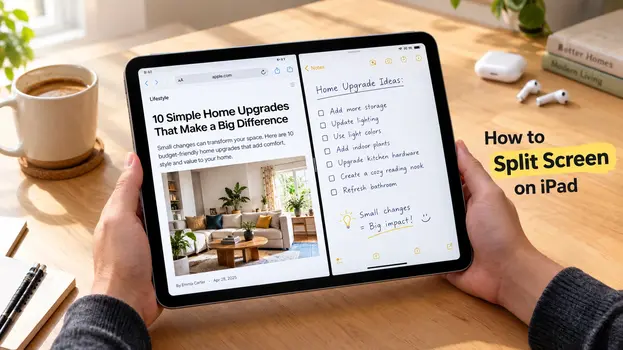
You open two apps, drag one to the side, and absolutely nothing happens. Sound painfully familiar?
Millions of iPad users struggle with multitasking every single day, even though Apple built an incredibly powerful split screen feature directly into the operating system years ago. The real problem is that most online guides skip the small but critical details that make or break the entire experience.
This guide walks you through every single method, every compatible model, and every frustrating edge case so you never waste another minute fighting your iPad. By the end, you will multitask like someone who has used iPadOS since day one.
What Exactly Is iPad Split Screen and Why Should You Care?
Split screen on iPad lets you run two full apps side by side at the exact same time. You can resize each window freely, drag text and images between them, and switch between tasks without ever losing your place in either app.
Apple officially calls this feature “Split View,” and it has been a core part of iPadOS for several major software generations. Yet a surprising number of people still use their iPad in single-app mode simply because they never learned the right gestures or shortcuts.
When you finally master split screen, your daily productivity jumps in ways that genuinely surprise most first-time users. Picture yourself taking detailed notes in one window while streaming a live lecture in the other, or browsing a complex recipe while keeping your grocery list open and editable right next to it.
Students, remote workers, and creative professionals get the most value from this feature. But honestly, anyone who uses their iPad for more than casual browsing will notice an immediate improvement in how fast they complete everyday tasks.
How to Do Split Screen on iPad (The Fastest Method)
The quickest way to activate split screen involves the Dock that sits at the bottom of your home screen. Here is exactly what you need to do, step by step, with no guesswork involved.
First, open the app you want to anchor on the left side of your screen. This becomes your primary workspace and stays fixed while you bring in the second application.
The Dock can then be seen by carefully swiping up from the display’s very bottom border. You will see your pinned favorites and recently used apps lined up in a neat horizontal row.
Now press and hold the second app icon you want to open alongside the first one. Drag it slowly toward the right or left edge of the screen until a translucent vertical divider line appears.
Release your finger the moment you see that divider, and both apps snap cleanly into place. You can grab the center divider at any time and drag it to adjust how much screen space each app occupies.
Using the Multitasking Menu (New Update Method)
If you are specifically searching for how to split screen on iPad new update versions running iPadOS 16, 17, or 18, Apple introduced a much simpler and more visual approach.
Look at the very top center of any open app window. You will notice three small dots arranged in a horizontal line. Tap those dots to instantly open the multitasking menu overlay.
From that menu, select the Split View icon, which looks like two vertical rectangles sitting side by side. Your current app immediately slides over to occupy one half of the screen.
The Home Screen then appears on the opposite half. Simply tap the second app you want to use, and it fills the remaining space in under a second.
This method works significantly faster than the Dock trick and feels far more intuitive for anyone who is new to iPad multitasking. Apple clearly listened to years of user feedback when designing this streamlined flow.
How to Split Screen on iPad Pro vs iPad Air
Many users wonder whether the process changes depending on which iPad model they own. The short and honest answer is that the core gestures stay identical, but the overall experience differs in meaningful ways.
When you learn how to split screen on iPad Pro, you unlock access to several extra multitasking features that smaller models simply cannot match. The larger 12.9-inch and 13-inch displays let you comfortably run three apps at once using Slide Over floating windows alongside a standard Split View pair.
The M-series chips inside newer iPad Pro models also handle memory-intensive multitasking without any noticeable lag or stutter. You can edit a 4K video timeline in one window and browse reference material on the web in the other without the system breaking a sweat.
On the other hand, figuring out how to split screen on iPad Air follows the exact same software steps. The 10.9-inch and 11-inch screens are slightly more compact, so you will likely prefer a 70/30 split ratio instead of an even 50/50 layout for comfortable readability.
Both the Pro and Air lines support the three-dot multitasking menu and the traditional Dock drag method equally well. The real difference boils down to available screen real estate and raw processor power, not the actual software steps you follow.
How to Split Screen on iPad Safari for Browser Multitasking
One of the single most popular use cases for split screen involves running two separate Safari windows at the same time. Maybe you want to compare product prices across two different shopping sites or cross-reference academic research articles for a school project.
To learn how to split screen on iPad Safari, start by opening Safari as your first and primary app. Then tap the three-dot multitasking menu located at the very top center of the browser window.
Select the Split View option, and when the Home Screen appears on the opposite side, tap the Safari icon a second time. Yes, iPadOS genuinely allows you to open the exact same app twice in split screen mode.
A completely independent Safari window loads on the other half of your screen. Each window maintains its own separate tabs, bookmarks, and browsing history, so they function as two fully standalone browser sessions.
You can also long-press any hyperlink in one Safari window and choose “Open in Split View” directly from the context menu. This clever shortcut saves you multiple taps and is absolutely perfect for quick side-by-side comparisons during research sessions.
How to Get Rid of Split Screen on iPad Quickly
Split screen can occasionally become far more bothersome than useful. . Maybe you triggered it completely by accident, or you simply want to return to a clean full-screen layout for a single app.
The easiest and fastest way to exit split screen is to grab the thin center divider and drag it all the way to the left or right edge of the display. The app on that side closes immediately, and the remaining app expands to fill the entire screen.
If you prefer using the multitasking menu instead, tap the three dots at the top of the app you want to keep open. Then select the full-screen icon, which looks like a single large rectangle, and the other app disappears instantly.
Another reliable trick involves swiping up from the bottom to open the Dock, then pressing and dragging the unwanted app icon completely off the screen. This method works especially well when the center divider feels stuck or difficult to grab.
Common Mistakes and Quick Troubleshooting Tips
Not every app in the App Store supports split screen on iPad, and this catches many users off guard. If you drag an app to the edge and nothing happens, the developer almost certainly disabled Split View in their app’s code.
Here are the most common issues users run into and how to fix each one fast:
- App refuses to split: Check if the app supports multitasking in its App Store listing. Games and some streaming apps often disable this feature intentionally.
- Three-dot menu missing: Update to iPadOS 15 or later through Settings > General > Software Update.
- Split screen feels laggy: Close unused background apps via the app switcher to free up system memory.
- Divider will not move: Restart your iPad by holding the power and volume buttons together for a clean system reset.
- Apps crash in split mode: Make sure both apps are updated to their latest versions through the App Store.
iPad Split Screen Compatibility at a Glance
| iPad Model | Split View | Slide Over | Stage Manager | Best Split Ratio |
| iPad Pro 13″ (M4) | ✅ Yes | ✅ Yes | ✅ Yes | 50/50 or 70/30 |
| iPad Pro 11″ (M4) | ✅ Yes | ✅ Yes | ✅ Yes | 50/50 |
| iPad Air 13″ (M2) | ✅ Yes | ✅ Yes | ✅ Yes | 50/50 or 70/30 |
| iPad Air 11″ (M2) | ✅ Yes | ✅ Yes | ✅ Yes | 70/30 |
| iPad (10th Gen) | ✅ Yes | ✅ Yes | ❌ No | 70/30 |
| iPad Mini (6th Gen) | ✅ Yes | ✅ Yes | ❌ No | 50/50 |
The table above confirms that nearly every modern iPad supports split screen right out of the box. The biggest differentiator across models is Stage Manager, which only works on devices equipped with M-series chips and delivers a desktop-style windowed multitasking experience.
If you own an older model that lacks Stage Manager support, there is genuinely no reason to worry. Standard Split View and Slide Over still cover the vast majority of real-world multitasking needs for everyday users, students, and casual professionals alike.
Frequently Asked Questions
Can I split screen on iPad with absolutely any app?
No, not every app supports Split View on iPad. The app developer must explicitly enable multitasking support in their code. Most major apps like Safari, Notes, Mail, Pages, and Slack work perfectly. If a specific app refuses to split, check the App Store description or reach out to the developer to request support in a future update.
How do I resize the split screen windows on my iPad?
Simply grab the thin vertical divider between the two open apps and drag it left or right across the screen. You can snap to a balanced 50/50 split, a wider 70/30 split, or a narrower 30/70 arrangement depending on your workflow. Release the divider when you reach your preferred layout, and both apps adjust instantly.
Does using split screen drain the iPad battery noticeably faster?
Running two apps simultaneously uses slightly more processing power, which can increase battery drain by roughly 10 to 15 percent compared to single-app usage. However, the real-world difference is minimal on newer iPads with M-series chips. If battery life is a concern during long sessions, try lowering your screen brightness while multitasking.
Can I use split screen on iPad in both landscape and portrait mode?
Yes, Split View works smoothly in both screen orientations. In landscape mode, the two apps sit side by side horizontally across the wider display. In portrait mode, they stack in a narrower vertical arrangement or default to a 70/30 layout depending on your specific iPad model and current iPadOS version.
Why does my iPad not show the three-dot multitasking menu?
The three-dot multitasking menu requires iPadOS 15 or any later version to function. Navigate to Settings, then General, then Software Update to check your current operating system version. If a newer update is available, download and install it, then restart your iPad. The multitasking dots should appear at the top center of every compatible app afterward.
How do I open three apps at once on my iPad screen?
Activate Split View with two apps first, then swipe up from the bottom to reveal the Dock and drag a third app onto the display. It will appear as a floating Slide Over window layered on top of your split pair. This three-app trick works best on iPad Pro and larger iPad Air models with generous screen space.
Final Thoughts on Mastering iPad Multitasking
Split screen on iPad is one of those features that feels almost magical once the gestures finally click in your muscle memory. You stop wasting time switching back and forth between apps and start working inside them simultaneously, which saves real and measurable time throughout your entire day.
Start with the three-dot multitasking menu since it is the most visual and beginner-friendly method available right now. Once you build confidence and speed, experiment with Dock dragging and Slide Over floating windows for more advanced and flexible workflows.
The biggest takeaway here is that your iPad is far more capable and versatile than a basic single-app experience suggests. Give split screen a genuine and honest try this week, and you will genuinely wonder how you ever managed your daily tasks without it.