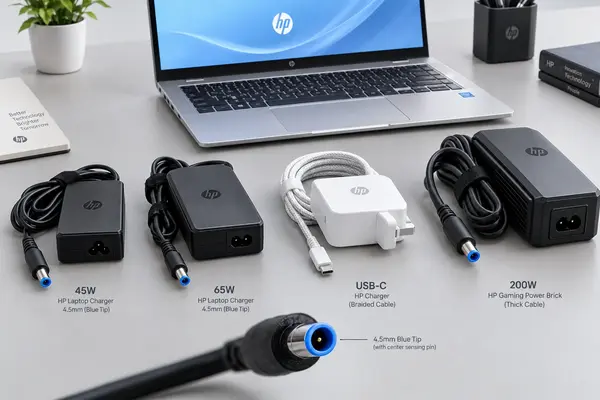
Your adapter just died and the battery reads 4%. Searching online floods you with vague advice that leads to buying the wrong plug or frying your motherboard with mismatched voltage. This bench-tested guide walks you through exact pin types, wattage matching, and the diagnostic steps real technicians use to get you powered up fast.
10-Second Charger Selector: Find Your Match Instantly
Before reading further, identify your charging port. This single step eliminates the vast majority of wrong purchases.
- 2021+ Business or Ultrabook (Spectre, Dragonfly, EliteBook G9+): Dual USB-C ports. You need a 65W or 100W USB Power Delivery adapter.
- Pavilion, Envy, ProBook, or Victus/OMEN 15–16: 4.5mm × 3.0mm Blue Tip barrel. Rated at 19.5V, 45W–65W for ultrabooks; 150W–230W for gaming models.
- Older Workstation, Compaq, or Legacy OMEN 17: 7.4mm × 5.0mm Large Barrel. Rated at 19.5V, 90W–330W.
- HP Stream or Early Chromebooks: 3.5mm × 1.35mm Micro Barrel. Rated at 19.5V, 45W.
Voltage vs. Wattage: The Rule That Prevents Fried Motherboards
This is the single most misunderstood spec in laptop charging. Getting it wrong can destroy your machine in seconds.
Voltage must match exactly. Nearly every HP laptop requires 19.5V DC input. Plugging in a 24V adapter — even from a reputable brand — pushes excess voltage past your charging circuit and fries the motherboard instantly. No amount of smart regulation protects against a voltage mismatch.
Amperage and wattage can be equal or higher. Wattage equals voltage multiplied by amperage. A 90W adapter delivers more current headroom than a 65W unit, but your laptop only draws what it needs. Running a 90W brick on a 65W machine is perfectly safe.
The danger runs the other direction. A 45W adapter on a laptop rated for 90W charges slowly, throttles your CPU, and overheats the adapter brick under sustained load.
| Spec | Rule | What Happens If You Get It Wrong |
| Voltage (V) | Must match exactly (19.5V for most HP models) | Over-voltage fries the motherboard. Under-voltage prevents charging entirely. |
| Amperage (A) | Can be equal or higher than original | Too low causes slow charging, CPU throttling, and adapter overheating. |
| Wattage (W) | Can be equal or higher than original | Too low triggers BIOS warnings and poor performance under load. |
Always check the output label on your original power brick before buying any HP laptop charger replacement. The numbers printed there are your baseline.
HP Pin Types Decoded: Blue Tip, Large Barrel, and USB-C
HP has cycled through four main connector designs over the past two decades. The HP laptop charger pin types you encounter depend entirely on your model’s production year and product line.
| Connector Type | Outer / Inner Size | Center Feature | Typical HP Lines | Common Wattages |
| Smart Pin (Blue Tip) | 4.5mm × 3.0mm | Center ID sensing pin | Pavilion, Envy, ProBook, Victus, modern OMEN | 45W, 65W, 150W, 200W, 230W |
| Large Barrel (Black Tip) | 7.4mm × 5.0mm | Center ID sensing pin | EliteBook (G1–G5), older ProBook, OMEN 17 | 65W, 90W, 230W, 330W |
| USB Type-C (PD) | Standard Oval | CC communication pins | Spectre x360, EliteBook (G8+), ZBook Firefly | 45W, 65W, 100W, 140W |
| Micro Barrel | 3.5mm × 1.35mm | Hollow center (no ID pin) | HP Stream 11/14, early Chromebooks | 45W |
A critical detail most guides get wrong: modern OMEN and Victus gaming laptops (2020 and newer) use the 4.5mm Blue Tip connector, not the legacy 7.4mm barrel. HP transitioned almost its entire gaming lineup to the smaller blue-tip plug, just at much higher amperage — 19.5V at 10.3A (200W) or 11.8A (230W). Only the massive OMEN 17 and ZBook Fury workstations still use the 7.4mm black barrel for their 280W–330W power supplies.
The blue tip smart pin contains a thin center sensing wire connected to a resistor-divider circuit or 1-Wire EEPROM chip embedded in the adapter. This chip tells your laptop’s embedded controller exactly how much wattage the brick can supply. When that center pin bends or breaks, the laptop still powers on through the outer barrel ring, but the system cannot read the adapter’s identity — triggering the BIOS warning covered in the diagnostics section below.
USB-C connectors skip the proprietary pin entirely. Instead, the charger and laptop negotiate power through the USB Power Delivery protocol over the CC (Configuration Channel) pins. The two devices exchange voltage and current profiles before any significant power flows.
Wattage Breakdown: 45W, 65W, 90W, and Gaming Adapters
Matching wattage to your workload prevents the two most common complaints I see on the repair bench: “my laptop charges too slowly” and “my adapter gets dangerously hot.”
| Wattage | Typical Models | Full Charge Time (0–100%) | Use Case |
| 45W | Stream, Chromebook, base Pavilion | 2.5–3.5 hours | Web browsing, documents, video playback |
| 65W | Pavilion, Envy, ProBook, EliteBook | 1.5–2.5 hours | Multitasking, light photo editing, Zoom calls |
| 90W | EliteBook workstations, ZBook Firefly | 1–1.5 hours | Heavy multitasking, external monitors, CAD |
| 150W–200W | Victus 15/16, OMEN 15/16 | 1–2 hours | Gaming, 3D rendering, GPU-intensive work |
| 230W–330W | OMEN 17, ZBook Fury | 1–1.5 hours | Desktop-replacement gaming and workstation loads |
An HP laptop charger 65W adapter covers the widest range of everyday HP notebooks. If your original brick reads 65W, stick with that rating or go up to 90W. Do not drop to 45W.
Gaming laptops present a special case. The Victus and OMEN lines ship with high-amperage blue-tip adapters because their discrete GPUs draw 80W–150W alone. A 100W USB-C PD charger keeps the battery topped up during web browsing, but the moment you launch a game, the GPU throttles hard without the full-wattage barrel brick connected.
The “Plugged In, Not Charging” BIOS Alert Explained
This is the number one diagnostic query I encounter from HP owners. The root cause almost always traces back to the smart pin.
When you boot an HP laptop with a damaged or unrecognized adapter, the screen displays this message during POST:
“The AC adapter type cannot be determined. Your system will operate slower and the battery will not charge.”
Here is what happens at the hardware level. The outer barrel ring delivers power to the motherboard, so the laptop turns on and runs. But the center sensing pin — the one connected to the adapter’s identification chip — is either bent, corroded, or missing entirely. Without that signal, the embedded controller refuses to route power to the battery as a safety precaution. It also throttles the CPU to prevent the unknown adapter from overheating.
Three common causes:
- Bent center pin inside the laptop’s DC jack. Inspect the port with a flashlight. If the pin leans to one side, a technician can carefully straighten it with a fine-tipped probe.
- Broken center wire inside the adapter cable. This happens when the strain relief — the rubber boot where the cable meets the barrel plug — cracks from repeated bending. A multimeter continuity test between the center pin and the adapter’s internal PCB confirms the break.
- Counterfeit adapter with no identification chip. Cheap knockoffs skip the EEPROM entirely. The laptop sees a “dumb” power source and defaults to the safe-mode behavior described above.
If your adapter passes a visual inspection but still triggers the warning, run the UEFI diagnostic test described next.
How to Run HP UEFI Diagnostics on Your Adapter
HP builds a hardware-level diagnostic suite directly into the firmware. You do not need Windows running to use it.
Step-by-step:
- Shut down the laptop completely.
- Press the power button, then immediately tap F2 repeatedly until the HP PC Hardware Diagnostics UEFI screen appears.
- Select Component Tests, then Power, then AC Adapter Test.
- The system reads the adapter’s identification chip and displays the recognized wattage. If it shows “Unknown” or “Not Detected,” the center pin circuit is broken or the adapter is counterfeit.
- Run the Battery Check in the same menu to confirm the battery itself has not failed.
This test takes under two minutes and eliminates guesswork. If the UEFI confirms the adapter is recognized at the correct wattage but the battery still refuses to charge, the fault likely lies in the charging IC on the motherboard — a board-level repair.
Source: HP’s official diagnostic instructions are available at support.hp.com.
Spotting Counterfeit Chargers Before They Damage Your Battery
Fake adapters dominate third-party marketplaces. I have opened dozens of counterfeit bricks on the bench, and the internal build quality is alarming — undersized transformers, missing fuse protection, and solder joints that crack within weeks.
Five physical checks you can perform in under a minute:
- Weight test. A genuine 65W HP adapter weighs roughly 250–300 grams. Counterfeits often feel hollow and weigh under 180 grams because they use smaller, cheaper transformers.
- Label inspection. Original HP chargers have laser-etched or molded text with crisp, even lettering. Fakes use inkjet-printed stickers with smudged fonts and misspelled words like “Inputt” or “Adpater.”
- UL certification mark. Look for the UL Listed symbol on the label. Verify it at ul.com by searching the file number printed next to the mark. No UL number means no independent safety testing.
- Cable flexibility. Genuine HP cables use thick, supple rubber that bends smoothly. Counterfeit cables feel stiff, plasticky, and develop kinks within days.
- Center pin presence. Look inside the barrel tip. A genuine adapter has a thin center sensing pin. Many fakes leave this pin out entirely, which triggers the BIOS warning from the previous section.
The safest route is purchasing an original HP charger directly from HP.com or an authorized retailer like Best Buy. You pay a premium, but you get a unit that passed UL, FCC, and HP’s own quality testing.
USB-C Power Delivery: What Your Port Actually Supports
Modern HP ultrabooks charge through USB-C using the Power Delivery (PD) standard. The charger and laptop negotiate voltage and current over the CC pins before any significant power flows.
| PD Profile | Voltage | Current | Wattage | Compatible HP Models |
| PD 45W | 20V | 2.25A | 45W | Spectre x360 13, Envy 13 |
| PD 65W | 20V | 3.25A | 65W | Envy 15, EliteBook 840 G8+ |
| PD 100W | 20V | 5A | 100W | ZBook Firefly, Spectre x360 16 |
| PD 140W | 28V | 5A | 140W | ZBook Fury 16 (USB-C auxiliary) |
An HP laptop charger USB-C adapter rated at 65W safely charges a 45W-rated laptop. The machine only pulls the current it needs. The reverse — plugging a 45W brick into a laptop expecting 65W — triggers a slow-charge warning in Windows and throttles performance under load.
One critical detail most guides miss: not every USB-C port on your HP laptop supports charging. Many models have one USB-C port wired for PD input and a second port wired for data only. Check the small battery icon printed next to the port, or consult your model’s QuickSpecs sheet on HP’s support site.
Modern EliteBook 840 models (G9, G10, and G11) have dropped the 4.5mm DC barrel entirely and rely solely on dual USB-C Thunderbolt ports for both charging and data. If you own one of these machines, a barrel charger will not physically fit — you need a USB-C PD adapter.
The USB Implementers Forum maintains the official PD specification at usb.org. Look for the USB-IF certified logo on any third-party HP laptop charger USB-C adapter you consider buying.
USB-C Hub Power Loss: Why Your 65W Charger Delivers Only 45W
This scenario catches people off guard constantly. You plug a 65W USB-C charger into a multi-port USB-C hub, connect the hub to your laptop, and Windows immediately shows a “slow charger” warning.
The hub itself consumes power. A typical USB-C docking hub with HDMI, Ethernet, and two USB-A ports draws 10W–20W for its own controller chips and port negotiation. That leaves only 45W–50W reaching your laptop from a 65W source.
The fix is simple: use a 100W USB-C PD charger when routing power through a hub. After the hub takes its share, your laptop still receives a comfortable 80W or more — more than enough for any ultrabook.
If your workflow requires a hub and you only own a 65W brick, plug the charger directly into the laptop’s dedicated charging port and use the hub on the second USB-C port for data only. This bypasses the power loss entirely.
Emergency Replacements: Where to Pick Up a Charger Today
When your adapter dies on a Sunday evening before a Monday deadline, waiting three days for shipping is not an option. Here is where to find a working replacement within the hour.
Brick-and-mortar stores with the best HP adapter stock:
- Best Buy carries the widest in-store selection of HP-branded 45W and 65W blue-tip chargers, plus USB-C PD options.
- Micro Center stocks both OEM and certified third-party adapters, including high-wattage gaming bricks.
- Staples and Office Depot keep common 65W blue-tip units on the shelf.
- Local electronics repair shops often sell universal HP-compatible chargers with interchangeable tips behind the counter. Call ahead to confirm stock.
Fastest online options:
- HP.com offers next-day shipping on original adapters to most US zip codes.
- Amazon (filter for “Ships from and sold by Amazon.com” or “HP Official Store”) delivers within 24 hours with Prime.
- Newegg provides competitive pricing, especially on 90W and gaming adapters.
When searching for a local option, typing your model number plus “charger” into Google Maps surfaces nearby electronics retailers with verified stock listings.
Charger Compatibility Chart by HP Model Series
Cross-reference your model family with this table to confirm the correct connector, wattage, and voltage before ordering.
| HP Series | Primary Connector | Wattage Rating | Standard Voltage | Example HP Spares Part |
| Pavilion 14 / 15 | 4.5mm Blue Tip | 45W or 65W | 19.5V | L43411-001 |
| Envy 13 / 15 / x360 | USB-C or 4.5mm Blue Tip | 65W | 20V (PD) / 19.5V | L64896-001 |
| Spectre x360 14 / 16 | USB-C (Thunderbolt) | 65W to 100W | 20V (PD) | M15267-001 |
| EliteBook 840 (G7–G8) | 4.5mm Blue Tip or USB-C | 65W | 19.5V / 20V (PD) | L32656-001 |
| EliteBook 840 (G9–G11) | USB-C (Thunderbolt) | 65W | 20V (PD) | M52952-001 |
| ProBook 450 (G8–G10) | 4.5mm Blue Tip or USB-C | 45W or 65W | 19.5V / 20V (PD) | L43411-001 |
| Victus 15 / 16 | 4.5mm Blue Tip | 150W or 200W | 19.5V | L93693-001 |
| OMEN 15 / 16 / Transcend | 4.5mm Blue Tip | 200W to 280W | 19.5V | M95377-001 |
| OMEN 17 / ZBook Fury | 7.4mm Barrel | 230W to 330W | 19.5V | L48962-001 |
| HP Stream 11 / 14 | 3.5mm Micro Barrel | 45W | 19.5V | 741727-001 |
Extending Adapter Lifespan: Wear Points Technicians See First
A well-treated HP laptop charger lasts three to five years. The units that die prematurely almost always fail at the same three physical stress points.
Strain relief cracking near the barrel plug. This is the number one failure I see on the bench. The rubber boot where the cable meets the connector flexes every time you plug and unplug. Over time, the rubber splits and the internal wires fracture. Wrap the cable loosely using the over-under coiling method — never cinch it tight with a twist tie or Velcro strap.
DC jack loosening inside the laptop. Yanking the plug out at an angle stresses the solder joints connecting the jack to the motherboard. Always pull the barrel straight out. If the plug wiggles noticeably when seated, the jack needs re-soldering before it tears a pad off the board.
Brick overheating from poor ventilation. Placing the adapter on a pillow, blanket, or carpet traps heat and degrades the internal capacitors. Keep the brick on a hard, flat surface with airflow on all sides.
Additional care tips:
- Unplug the adapter from the wall when not in use. Standby power generates low-level heat that shortens capacitor life over months.
- Avoid leaving the charger in a hot car. Interior temperatures above 140°F (60°C) accelerate component degradation.
- Inspect the cable monthly for fraying, especially near both ends.
Frequently Asked Questions
What wattage charger does my HP laptop need?
Check the output label on your original power brick or look up your exact model on HP Support. Most everyday HP laptops require 45W or 65W at 19.5V. Gaming models like the Victus and OMEN need 150W–280W through a 4.5mm blue-tip plug. Always match the voltage exactly and meet or exceed the original wattage.
Can I use a 90W charger on a 65W HP laptop?
Yes, safely. Your laptop draws only the current it requires. A 90W adapter provides extra headroom without pushing excess power into the machine. The critical rule is that voltage must remain 19.5V — never use a higher-voltage adapter regardless of wattage.
Why does my HP laptop say “AC adapter type cannot be determined”?
This BIOS alert means the center sensing pin in your barrel connector is damaged, bent, or missing. The outer ring still delivers power, so the laptop runs, but the system cannot identify the adapter’s wattage and disables battery charging as a safety measure. Inspect the pin with a flashlight or run the F2 UEFI AC Adapter Test to confirm.
Does a USB-C hub reduce my charger’s wattage?
Yes. A multi-port USB-C hub consumes 10W–20W for its own controller chips, leaving less power for your laptop. A 65W charger through a hub may deliver only 45W–50W to the machine. Use a 100W charger when routing power through a hub to compensate for the overhead.
Are third-party HP chargers safe to use?
Certified third-party adapters from brands like Anker, Targus, or Lenovo are safe as long as they match your laptop’s voltage (19.5V for barrel, 20V for USB-C PD) and carry UL, CE, or USB-IF certification. Avoid unbranded chargers from unknown sellers — they frequently lack fuse protection and use undersized transformers.
Can I charge my OMEN or Victus gaming laptop over USB-C?
Partial charging, yes. Full gaming performance, no. Modern Victus and OMEN laptops use a high-amperage 4.5mm blue-tip adapter (150W–280W) to power the discrete GPU under load. A 100W USB-C PD charger handles web browsing and light tasks, but the GPU throttles severely during gaming without the barrel brick connected.
Get the Right Adapter and Stop Guessing
A dead charger should not mean hours of research and a gamble on the wrong plug. Match the voltage exactly (19.5V for nearly all HP models), meet or exceed the original wattage, and confirm the connector type using the decision tree at the top of this guide.
Run the F2 UEFI diagnostic if you see the “adapter type cannot be determined” warning. Check the center pin. Verify UL certification on any replacement you buy. These three steps alone prevent the vast majority of charging problems I see on the bench.
Still unsure which adapter fits your specific model? Drop your HP product number (found on the bottom label) in the comments and I will point you to the exact part number and wattage within 24 hours.
Author Expertise Note: This guide draws on hands-on bench repair experience with HP Pavilion, Envy, Spectre, EliteBook, Victus, and OMEN product lines. All wattage figures, part numbers, connector specifications, and diagnostic procedures reflect verified HP service documentation and physical adapter teardowns. Specifications cross-referenced with HP Support (support.hp.com), the USB Implementers Forum (usb.org), and UL product safety listings (ul.com).